
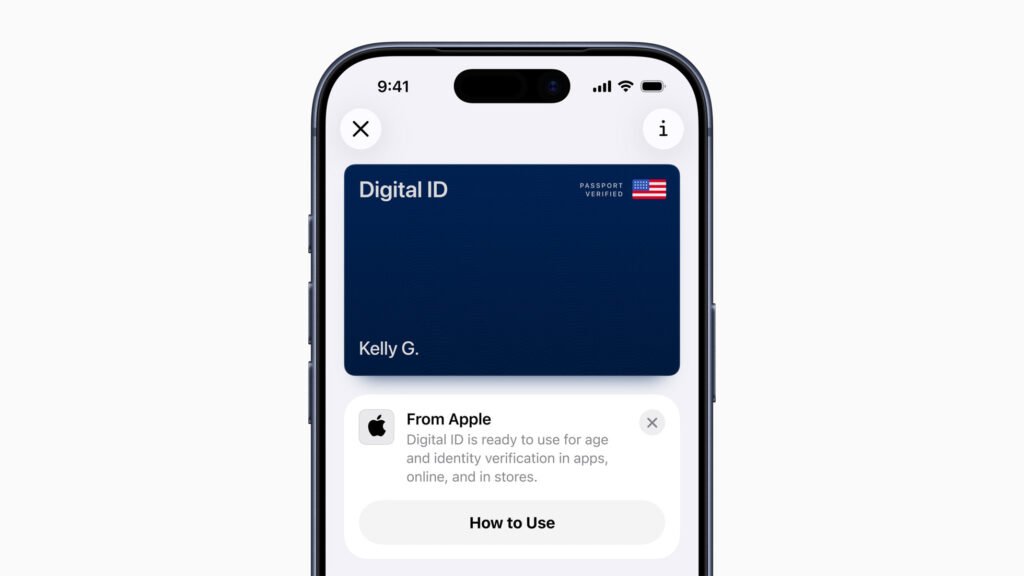
Apple has launched Digital ID for iPhone and Apple Watch. It lets you create an ID inside Apple Wallet using information from your U.S. passport, then present that ID at supported readers with Face ID or Touch ID. Acceptance begins in beta at Transportation Security Administration checkpoints at more than 250 U.S. airports for domestic travel. Additional use cases will follow. See Apple’s overview for current details: https://learn.wallet.apple/id and the TSA digital ID program page: https://www.tsa.gov/digital-id.
What Digital ID is and what it is not Digital ID gives more people a way to present identification even if they do not have a REAL ID compliant driver’s license or state ID. It is not a replacement for a physical passport. You cannot use Digital ID for international travel or border crossings. For broader news context, monitor the Apple Newsroom: https://www.apple.com/newsroom/.
How to add Digital ID to Apple Wallet
- Open Wallet on iPhone, tap the + button, then choose Driver’s License or ID Cards and select Digital ID.
- Scan the photo page of your U.S. passport with the iPhone camera.
- Hold the back of the passport to your iPhone so it can read the embedded NFC chip and verify authenticity.
- Take a selfie for verification and complete the short head movement prompts.
- After approval, your Digital ID appears in Wallet on iPhone and can be synced to Apple Watch.
How to present your Digital ID Double click the side or Home button to open Wallet, choose Digital ID, and hold your device near the identity reader. You will see exactly which fields are being requested. Approve with Face ID or Touch ID to share only the information needed for that moment. You do not need to unlock, show, or hand over your device.
Privacy and security in plain language Digital ID data is stored on device and encrypted. Apple states it cannot see when or where you present your ID or what data you shared. Biometric authentication ensures only you can present your ID. Field level sharing means a checker sees only what is necessary, such as your name and date of birth for age verification. For Apple’s privacy posture, visit https://www.apple.com/privacy/ and the Digital ID overview: https://learn.wallet.apple/id.
Where you can use it today and what is next At launch, acceptance is in beta at TSA checkpoints for domestic flights at 250 plus airports. You should still carry a physical ID as backup while adoption grows. Apple says select businesses and organizations will be able to accept Digital ID in person, in apps, and online in the future. If you do not have a passport, you can still add an eligible driver’s license or state ID to Wallet where supported. Availability currently includes 12 U.S. states and Puerto Rico, with more regions in progress and Japan live for My Number Card on iPhone. Check the latest coverage at https://learn.wallet.apple/id.
Tips for a smooth setup and first use
- Update to the latest iOS or watchOS before you begin.
- Make sure your passport is NFC enabled and undamaged.
- Use bright, even lighting for the selfie and head movement prompts.
- Plan for airport use. Keep your device charged and know which TSA lanes support Digital ID at your departure airport.
- Bring a physical ID in case a reader is offline or a lane is not yet enabled.
Who benefits right now
- Travelers waiting on REAL ID who still need a convenient way to verify identity at TSA for domestic flights.
- People who prefer not to hand over a physical card, since Wallet lets you approve only the fields that are needed.
- iPhone and Apple Watch users who want a single, private way to present ID alongside boarding passes and payment cards.
If you want help building simple digital identity policies for your household or organization, or training team members on secure wallet usage, we have resources that can help. See our Business IT Consulting page for planning and guardrails: https://jt4tech.com/business-it-consulting/. For hands on enablement workshops, visit AI Training for Teams: https://jt4tech.com/ai-training/. If you need a quick consultation, reach us via the JT4 Technologies contact page: https://jt4tech.com/contact/.